Tax Return Converter Instructions
The Tax Return Converter for Drake, Drake Business, ProSeries, ProSeries Business, TaxSlayer, TaxSlayer Business, TaxWise, and TaxWise Business
Note: The converted returns will not convert all data that is on the original returns. The converted returns are not intended to be a replacement of the originals. The converter captures information necessary to transfer client data into the 2025 tax program for preparation of 2024 tax returns.
Install the 2024 tax program (tax year 2023)
To convert tax return data, install the 2024 tax program on the computer or network. We recommend choosing the computer or network where they will install the 2025 tax program.
Update the 2024 tax program to the current version:
1. Open the 2024 tax program.
2. Click Transmit to Central Site on the Work In Progress Summary to download updates.
3. Click Software Updates on the Work In Progress Summary.
4. Click Apply All to install the updates.
5. Once the updates have finished installing, click Restart
Download Tax Return Conversion Software: 2024 Data Converter
Install 2024 Data Converter
1. Locate the downloaded converter and double click to run.
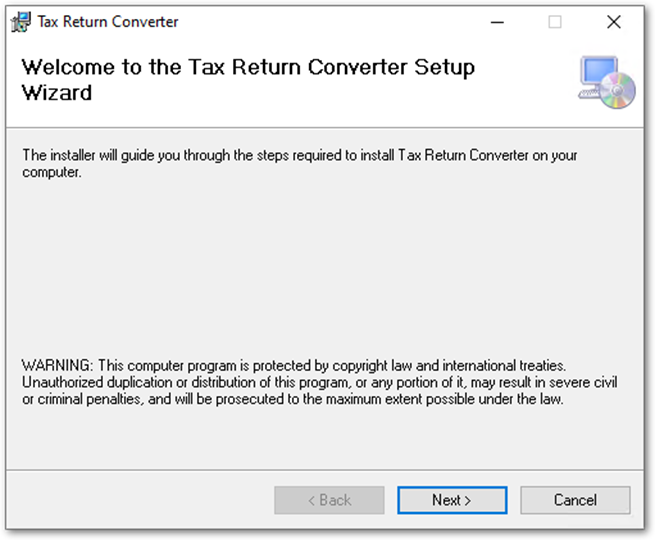
2. Click the Next button on the Tax Return Converter Setup Wizard
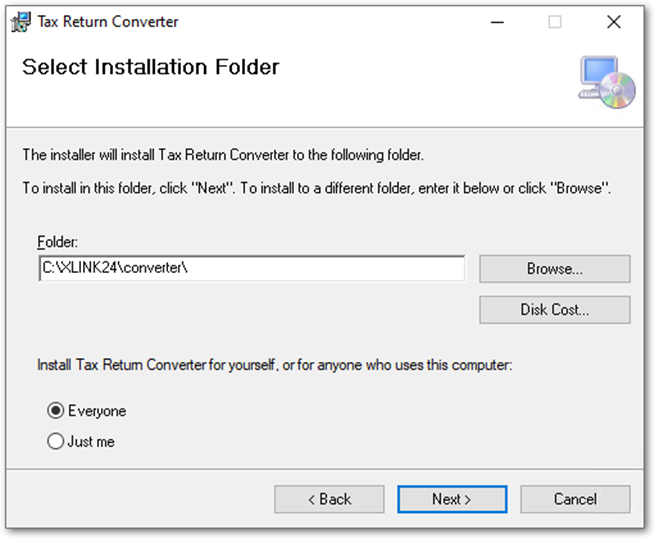
3. Select where to install the Tax Return Converter. By default the converter will install to the location of C:\XLINK24\Converter\. To select a different folder click the Browse button. When the install location has been selected click Next.
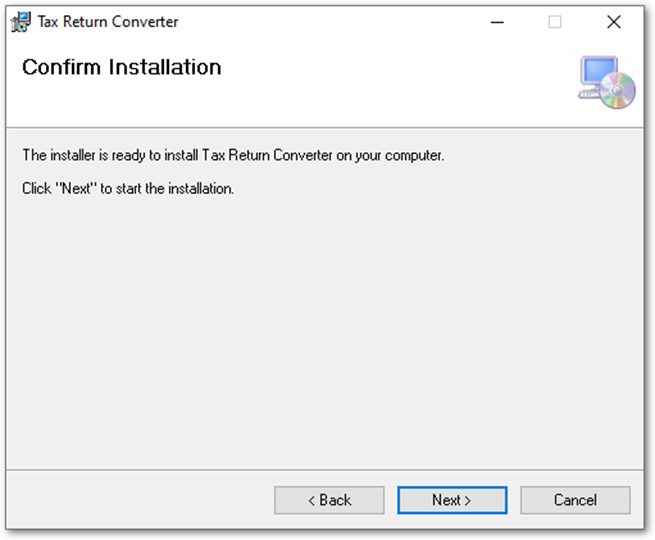
4. Click Next to confirm the installation.
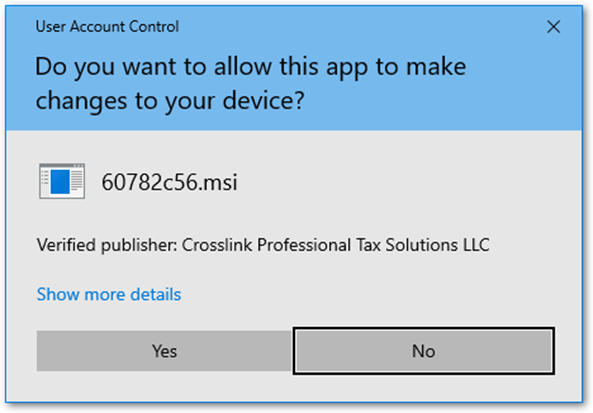
5. If prompted to allow the program to install software on the computer. Click Yes to continue
6. The Tax Return Converter will install.
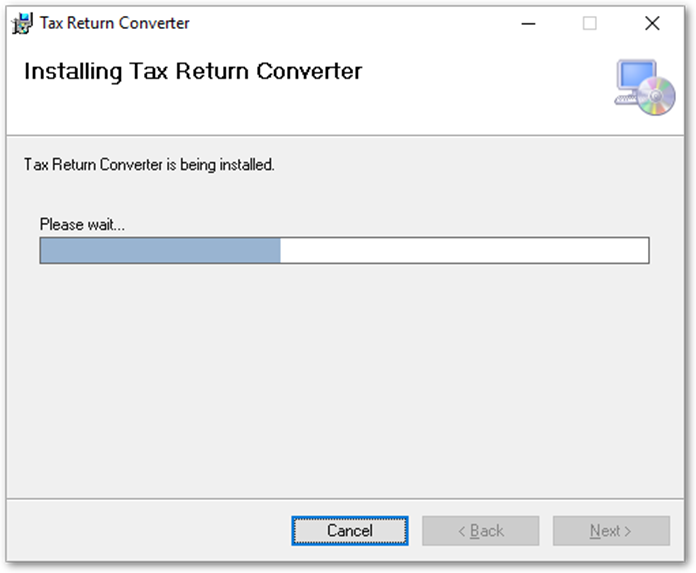
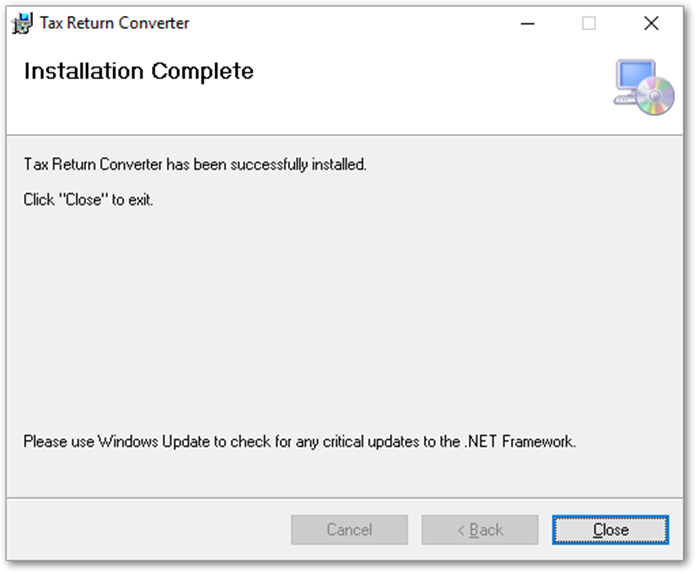
7. Once installation is completed. Click Close.
Run the Conversion Program
1. If you have any tax returns in the 2024 tax program that you do not want overwritten, create a full backup of your tax return data before continuing. Call Technical Support if you need assistance with creating a backup of your tax return data.
2. Click the start button on the Windows taskbar.
3. Click All Programs or All Apps.
4. Click the CrossLink folder.
5. Click Return Converter to open the conversion program.
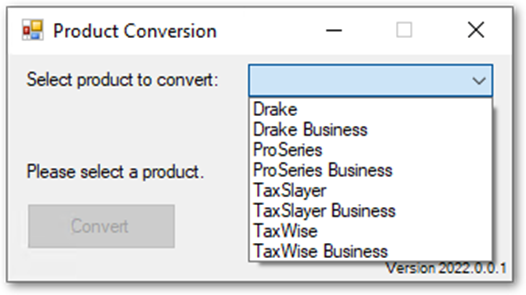
6. Choose the product you are converting from and then click Convert.
7. Choose the location. The default location will be selected automatically if the files are on the local computer and in the default location. If not, you will need to select the appropriate location.
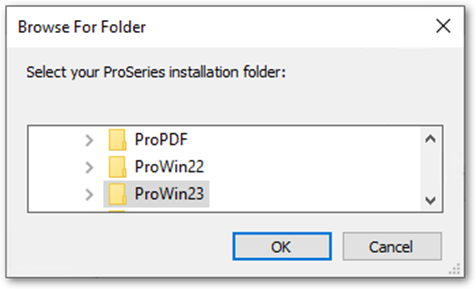
The default location is:
- Drake: C:\DRAKE23
- ProSeries: C:\ProWin23 or C:\ProSeries\ProNet23
- TaxSlayer: C:\TaxSlayer\2023Net
- TaxWise: C:\UTS23
8. Click OK, the converter will connect to the competitor software.
Note: This step may take a while when converting a large number of returns. Please be patient
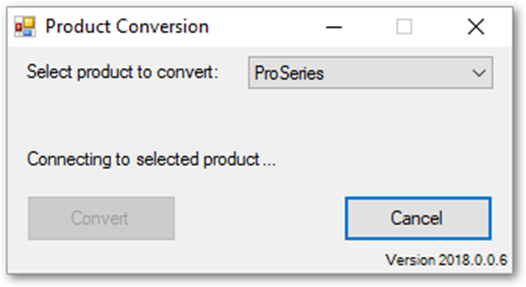
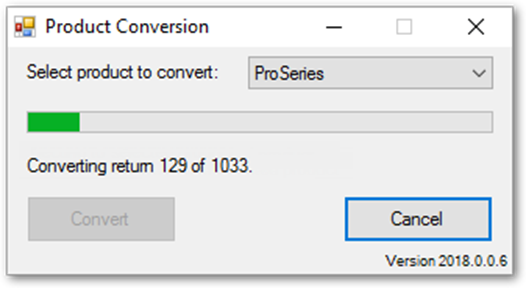
9. The converter will begin converting
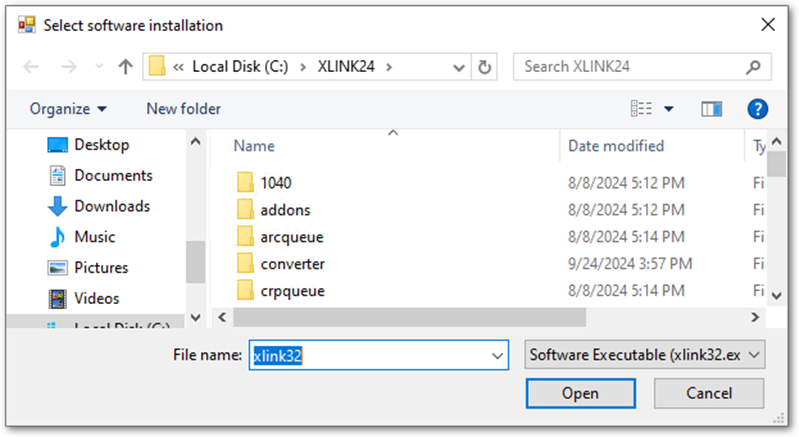
10. Once the conversion has completed, the Select xlink installation window will appear. Select the 2024 tax program executable and then click Open.
11. The Software – User Login window will appear. Log into the tax program.
12. The converted returns will import.
To bring forward information from 2024 into 2025
When you download the 2025 tax program, install it on the same PC or network drive as 2024.
As you start preparing each tax return by entering the taxpayer’s SSN or EIN, the tax program prompts you to carry forward the data from the prior year.
The prior year path needs to be configured on each workstation the tax program will be used on.
To configure the prior year path:
- Open the Setup menu, click Local Setup.
- Click the Browse button to browse to the Prior Year Path.
- Select the xlink24 directory and click OK.
- Click OK to close the Application Settings window.
- Repeat steps 1-4 for any other workstation.